
Share Files With a QR Code Scan, Open, and Download
Have a file on your computer that you need on your phone? Upload it to FyleTransfer and scan the QR code with your phone camera. Open the link to reach the download page. You can skip typing a long URL or sending yourself a message.
How to Share Files With a QR Code
- Step 1
Choose your file
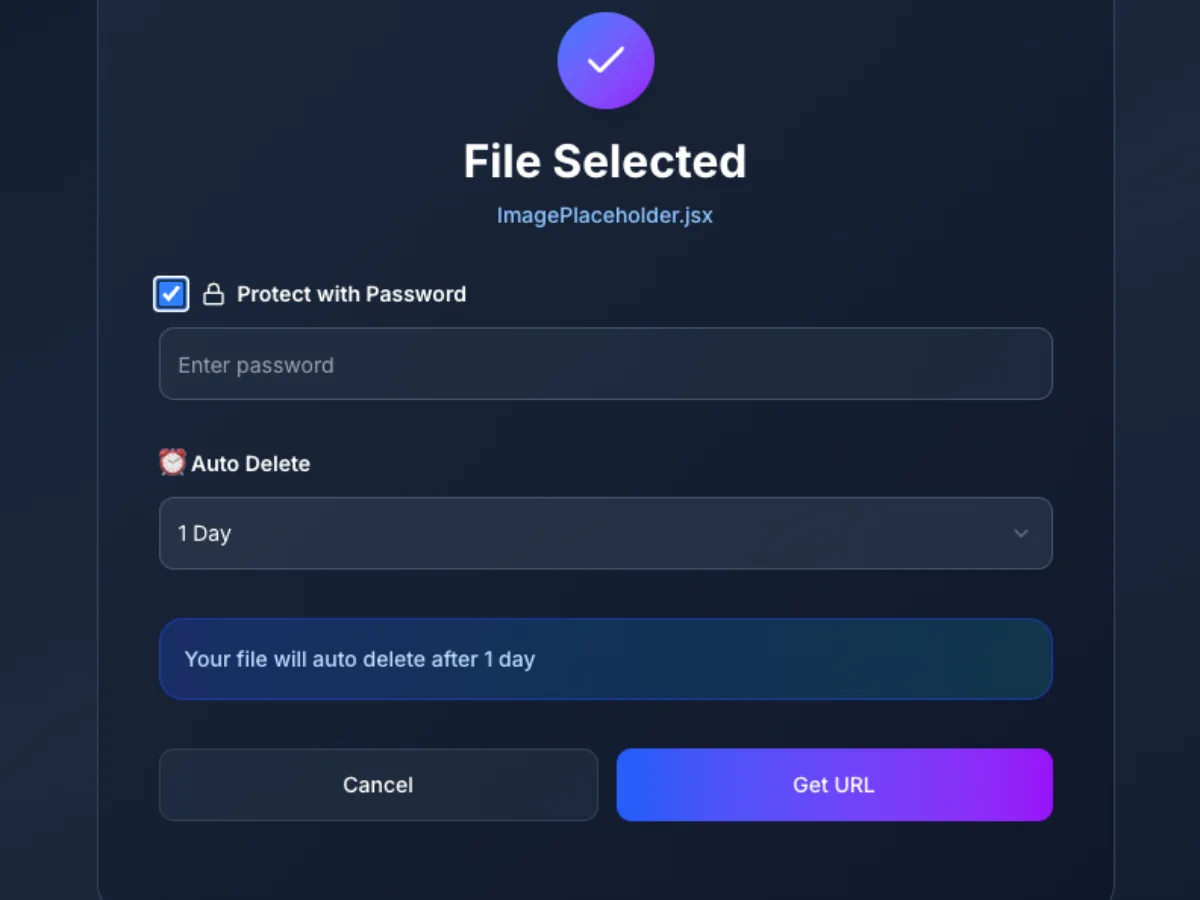
Open Send in the navigation bar. Choose your file on the Send Files page. Check its name so you share the right version.
- Step 2
Set access and start the upload
Choose an Auto Delete period. Turn on Protect with Password if needed. Click Get URL to start uploading your file.
- Step 3
Wait for your QR code
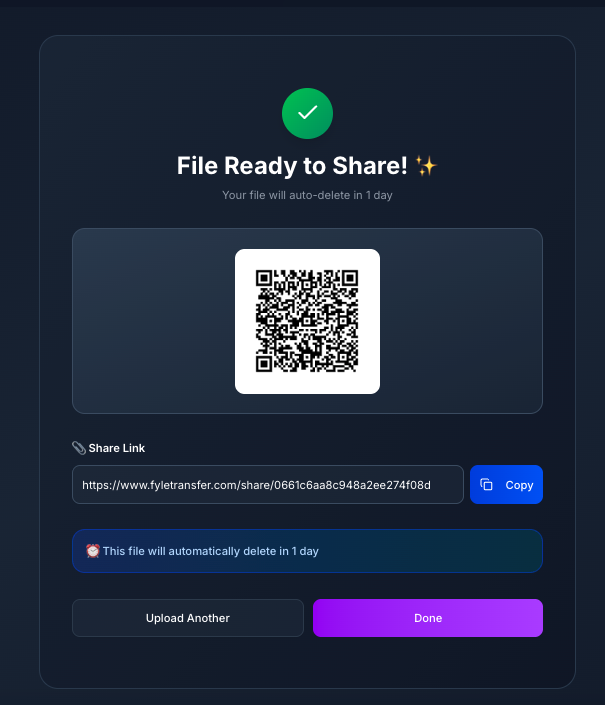
Keep the page open while the file uploads. When you see File Ready to Share, your QR code and share link are ready. You do not need to make the code yourself.
- Step 4
Scan and download
Point your phone camera at the QR code and tap the link that appears. Enter the password if one is set, then use the download option to save the file.
Upload Your File Before You Share
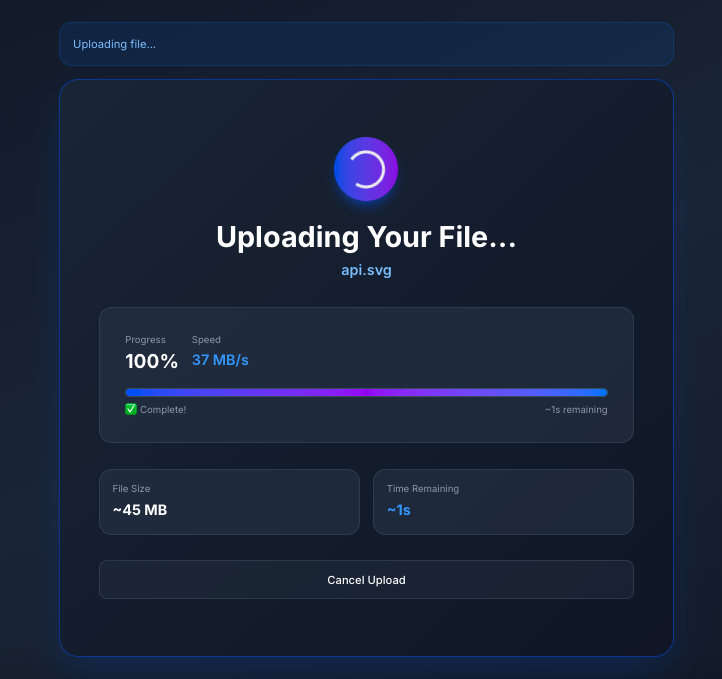
Click Get URL to start the upload. The next screen shows your file name and progress. Keep the tab open and wait for File Ready to Share. Even if progress shows 100%, wait for that screen before you scan. A large file or a slow connection can mean a longer wait.
Transfer Files From PC to Phone With a QR Code
Need a PDF from your laptop on your phone? Upload it from the laptop, then scan the code on its screen. Tap the link and download the PDF. Your phone needs internet access and enough free space to save it. Open the saved file to check that you got the right one.
One File Link, Two Ways to Share
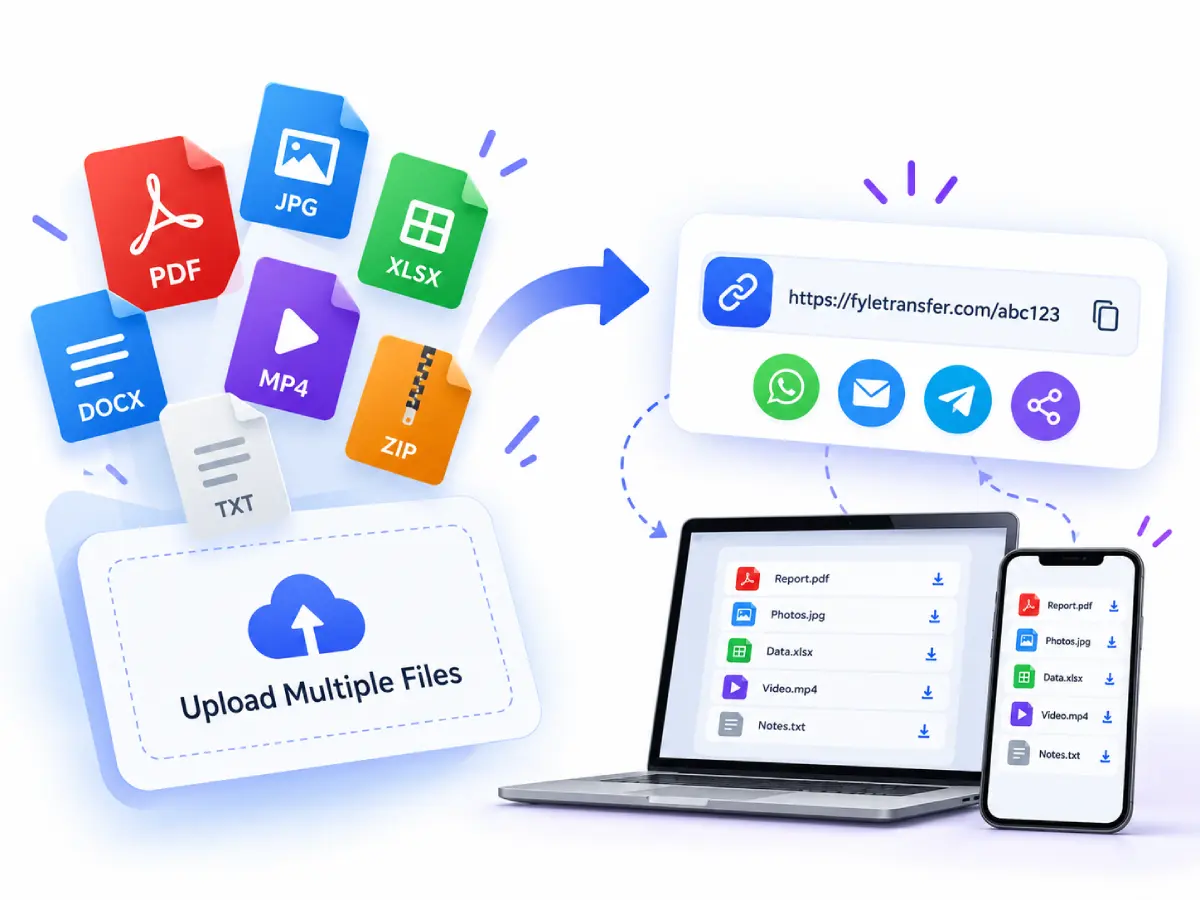
Use the QR code when the other person can scan your screen. If they are elsewhere, click Copy next to Share Link and send the URL by email or chat. Both lead to the same file page. The QR code holds the link, so the file still needs to be downloaded after the scan.
Keep File Sharing Simple
Choose how long the file stays available and how the recipient will open it.
Upload Files & Choose When Access Ends
Choose an Auto Delete period from 1 day to 5 years before you upload. Pick a time that suits the task. The code cannot open an expired file. Tell the person when access ends so they have time to save a copy.
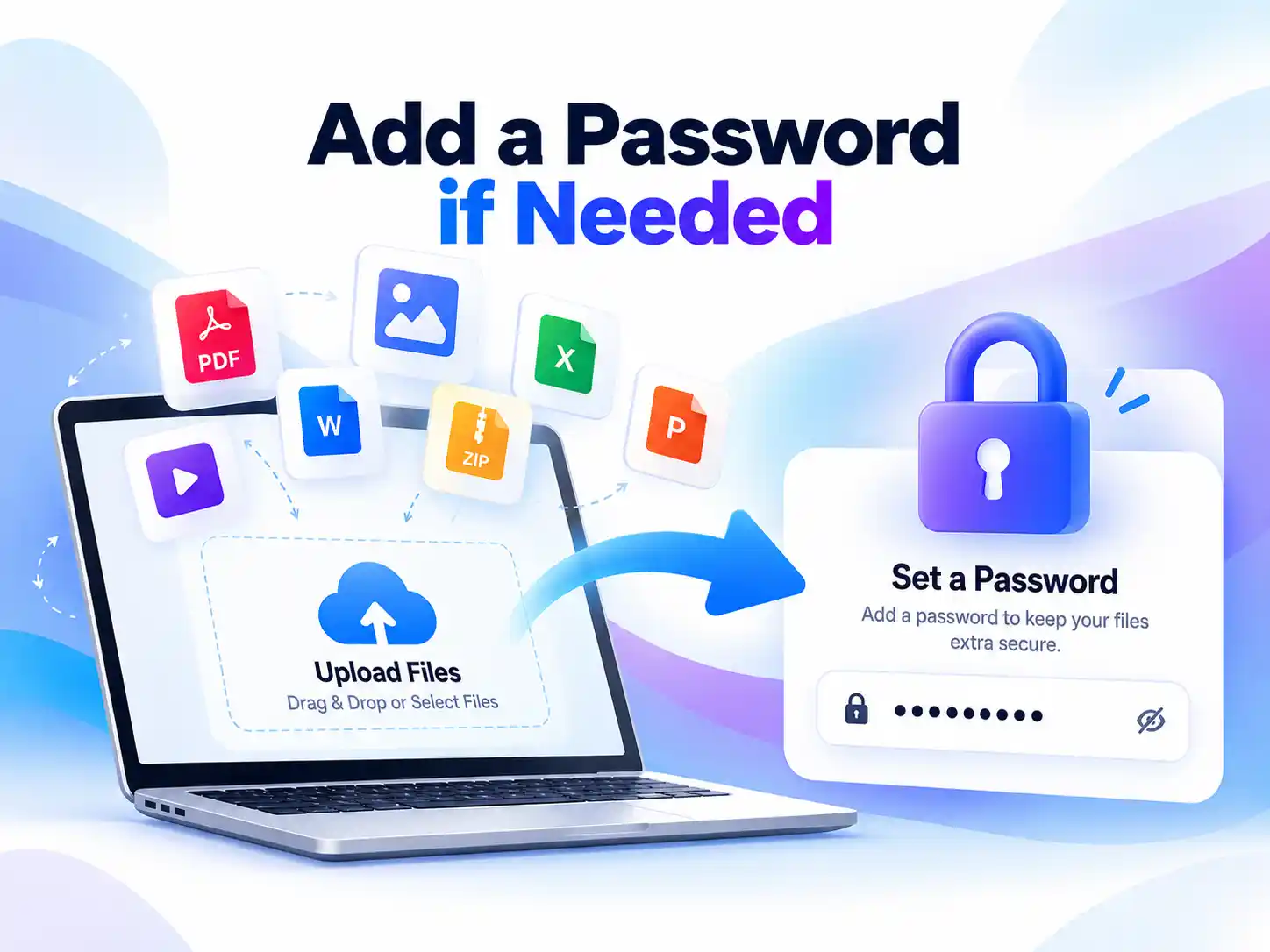
Add a Password if Needed
Treat the QR code like the share link. Someone can pass on a photo of it. For a private file, turn on Protect with Password before you upload. Send the password in a separate message. A QR code on its own does not keep a file private.

Get a QR Code With Your Link
The share screen gives you a QR code and a Copy button for the same link. Scan the code from a second device. If you use one phone for both steps, copy the link and send it to the person who needs the file.
How This Guide Matches FyleTransfer
These steps follow the Send Files screens: choose a file, set Auto Delete, click Get URL, then wait for File Ready to Share. The QR code holds the same URL as the Share Link field. It does not hold the file or skip a password check. Once someone saves a copy, expiry cannot remove it from their device. Use the links below to learn about FyleTransfer, read its data policies, or ask for help with a transfer.
Frequently Asked Questions
Common questions about sharing and downloading files with a QR code
Didn't find what you're looking for?
Our support team is here to help. Reach out anytime for assistance.
Contact Support