
Send Multiple Files Online in One Link
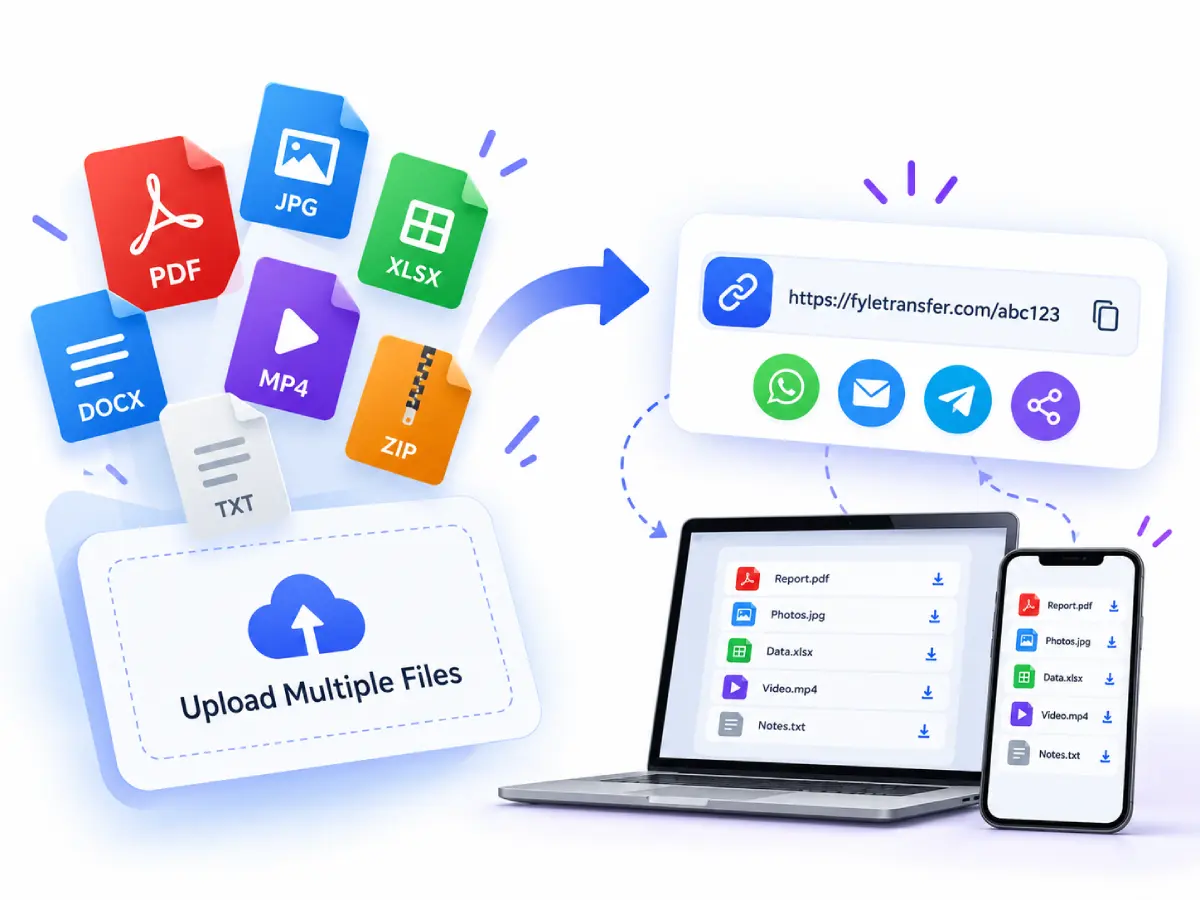
A proposal rarely comes as one file. There is the PDF, the spreadsheet, and a few supporting images — and they all need to reach the same person. With FyleTransfer, you can select them together, let the browser prepare a ZIP, and send one download link instead of a string of attachments.
How to Send Multiple Files at Once
- Step 1
Open Send Files from the navbar
Click Send in the navigation bar to open Send Files. Have all the files for your transfer ready before you start selecting.
- Step 2
Select your files together
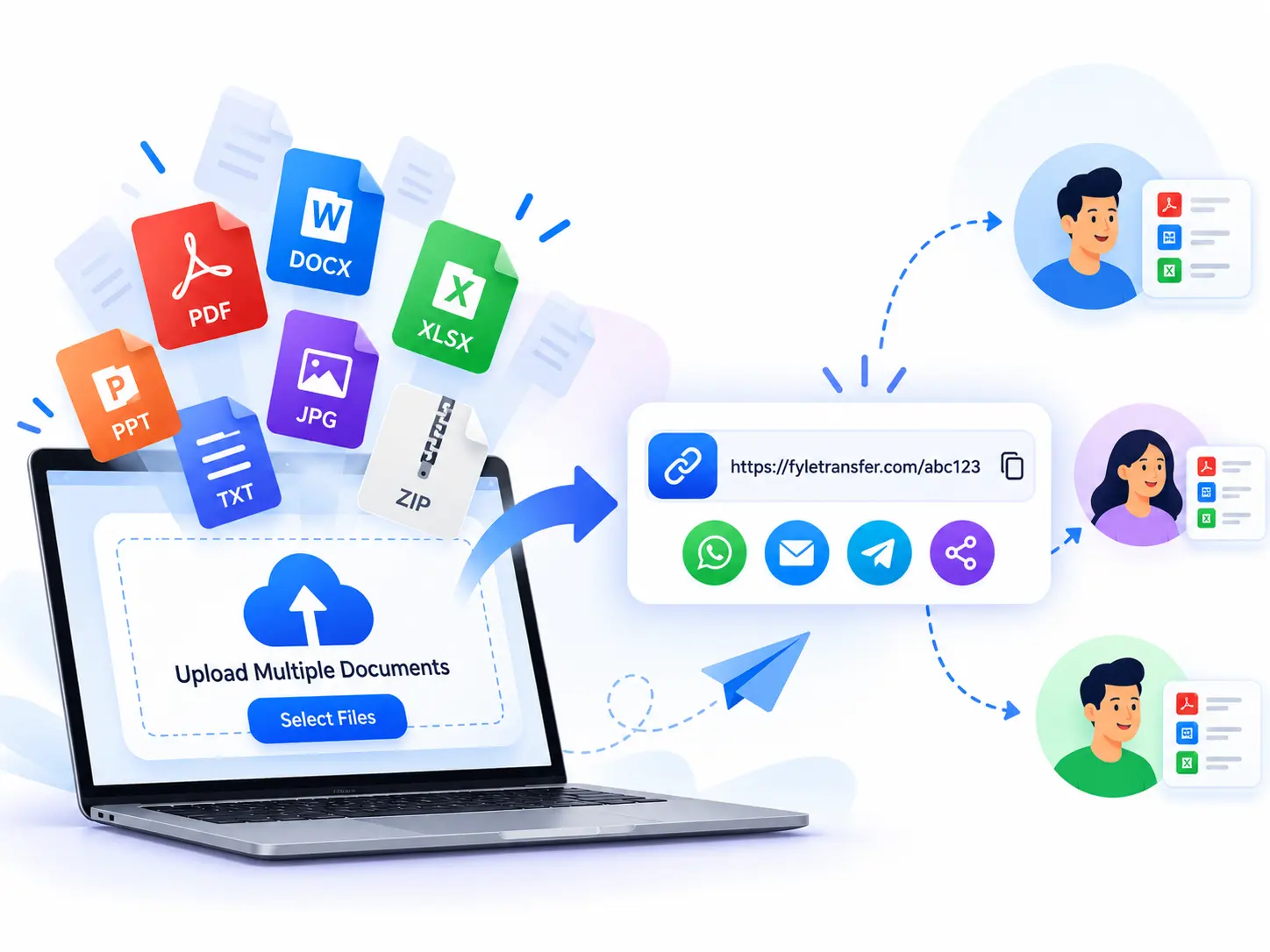
Click the upload area and select multiple files in the same selection using Ctrl on Windows or Command on Mac. You can also drag and drop the whole batch together. FyleTransfer prepares a ZIP for a multiple-file selection.
- Step 3
Choose your sharing settings
Once the ZIP is ready, select an Auto Delete period from 1 day to 5 years. Enable Protect with Password if needed, and enter a password before creating your link.
- Step 4
Get URL and share the link
Click Get URL, keep the page open while the upload finishes, and copy the resulting link. Send it by email or message and tell your recipient when it expires. Share any password separately.
Share Multiple Files With One Link
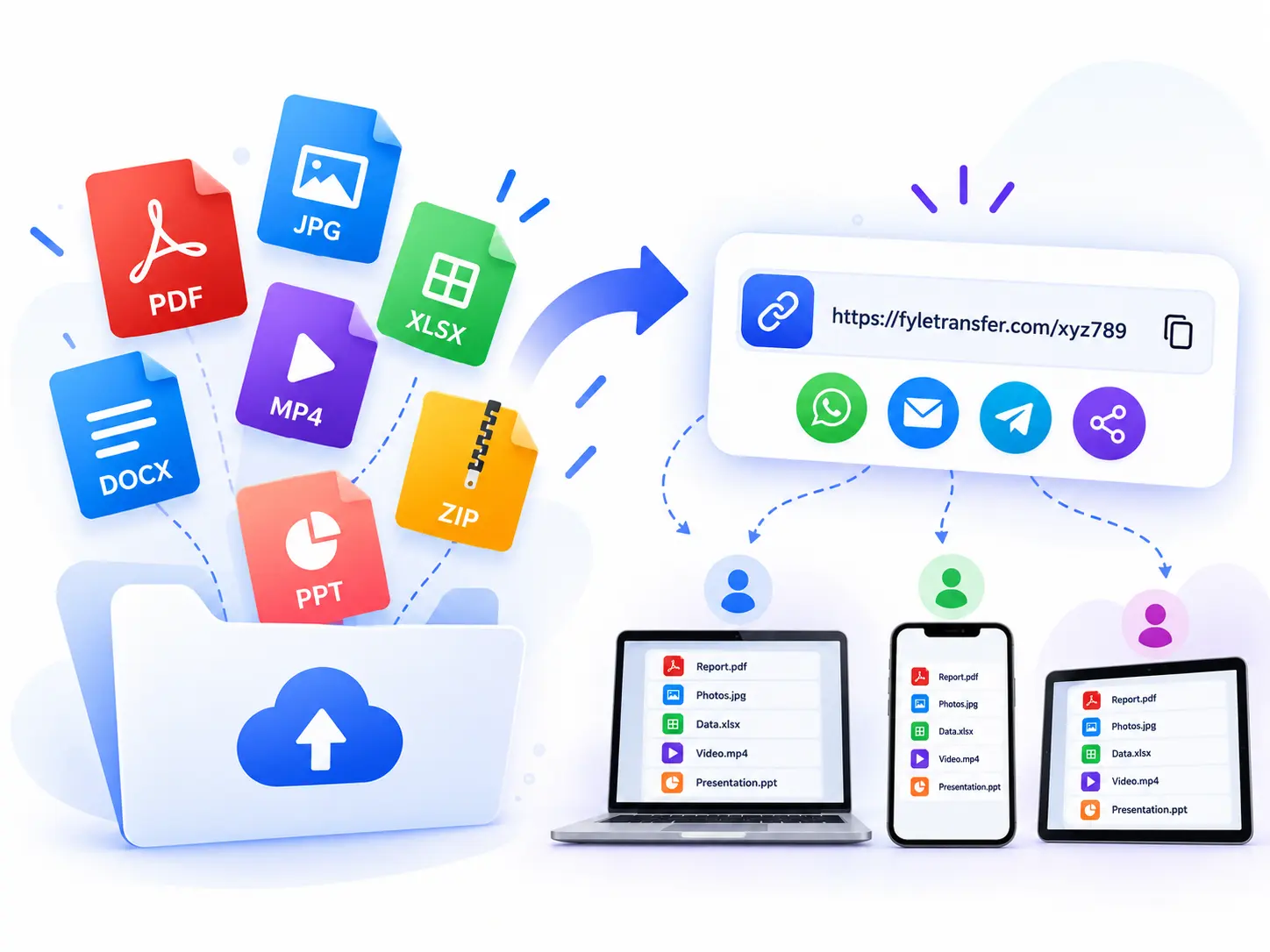
When the recipient needs the whole set, a single ZIP keeps the handover straightforward. A designer can send final artwork with reference images; a project manager can send a report with its spreadsheet. The recipient downloads the archive and extracts it on their device to access the files inside.
Send Multiple Documents Online Without Separate Attachments
Combine a PDF, a presentation, and supporting documents in one transfer. Give each file a clear name before selecting it, such as Proposal.pdf and Budget.xlsx. If files from different folders have the same name, rename them first: duplicate names can replace one another when the archive is prepared.
Upload Multiple Files and Share a Link: Know the ZIP Limit
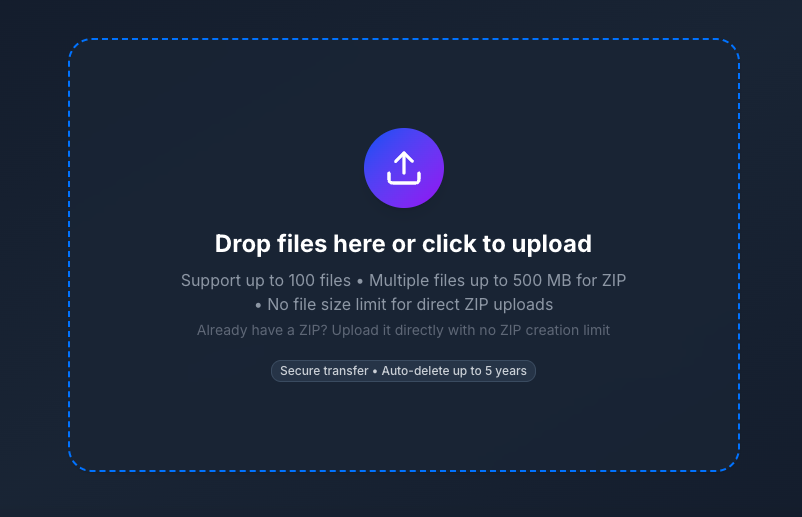
Automatic ZIP creation accepts a batch totalling up to 500 MB before compression. If your selection is larger, create a ZIP on your device and upload that archive as a single file. Browser memory, your connection, and available device resources can affect preparation and upload time, so allow extra time for a large handover.
Send Many Files Online With a Clear Deadline
Choose an expiry that matches the task. A short review might need 3 days; a project handover might need 30 days. All files inside the shared archive use the same transfer settings. If different recipients need different files or deadlines, create separate transfers so each person receives the appropriate set.
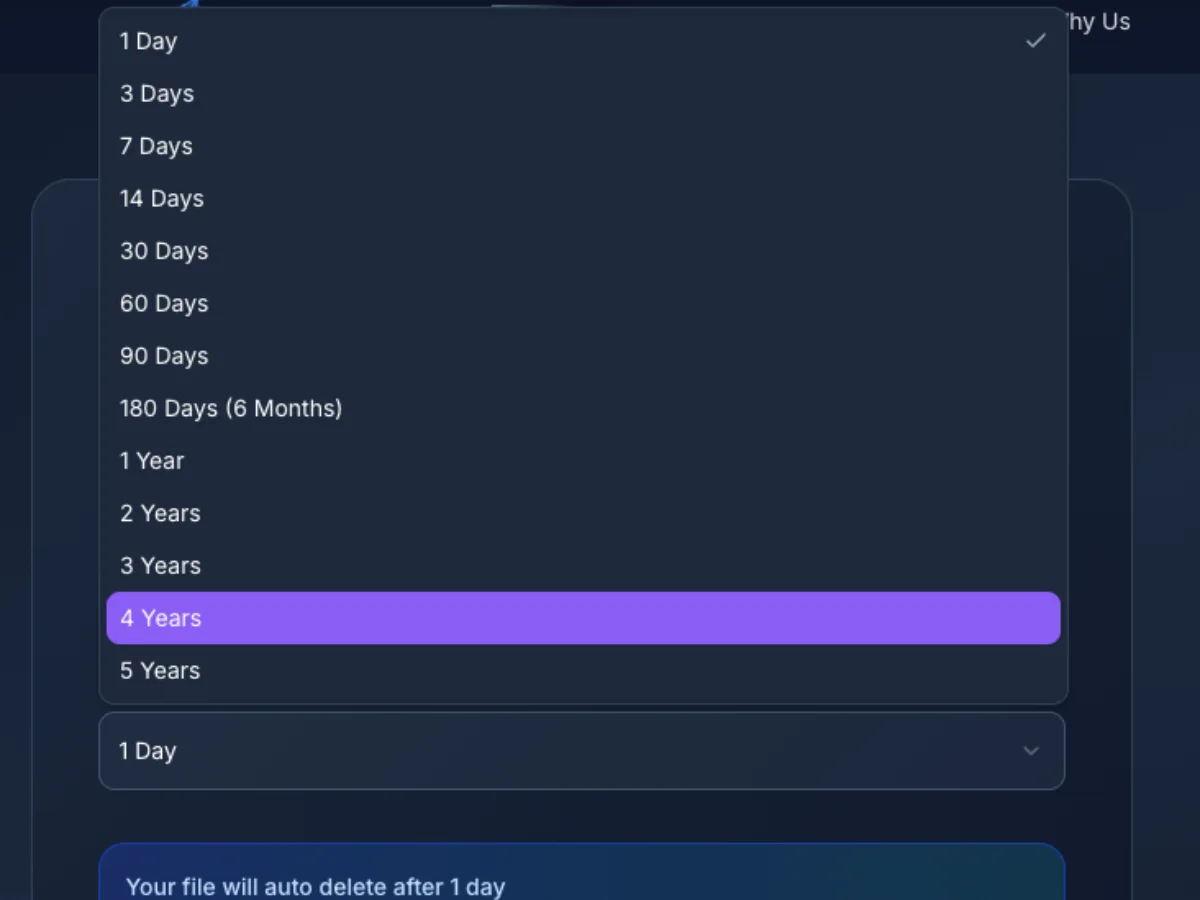
A Better Handover Starts With a Quick Check
Check the batch before uploading so your recipient gets the right files, with enough time to download them.
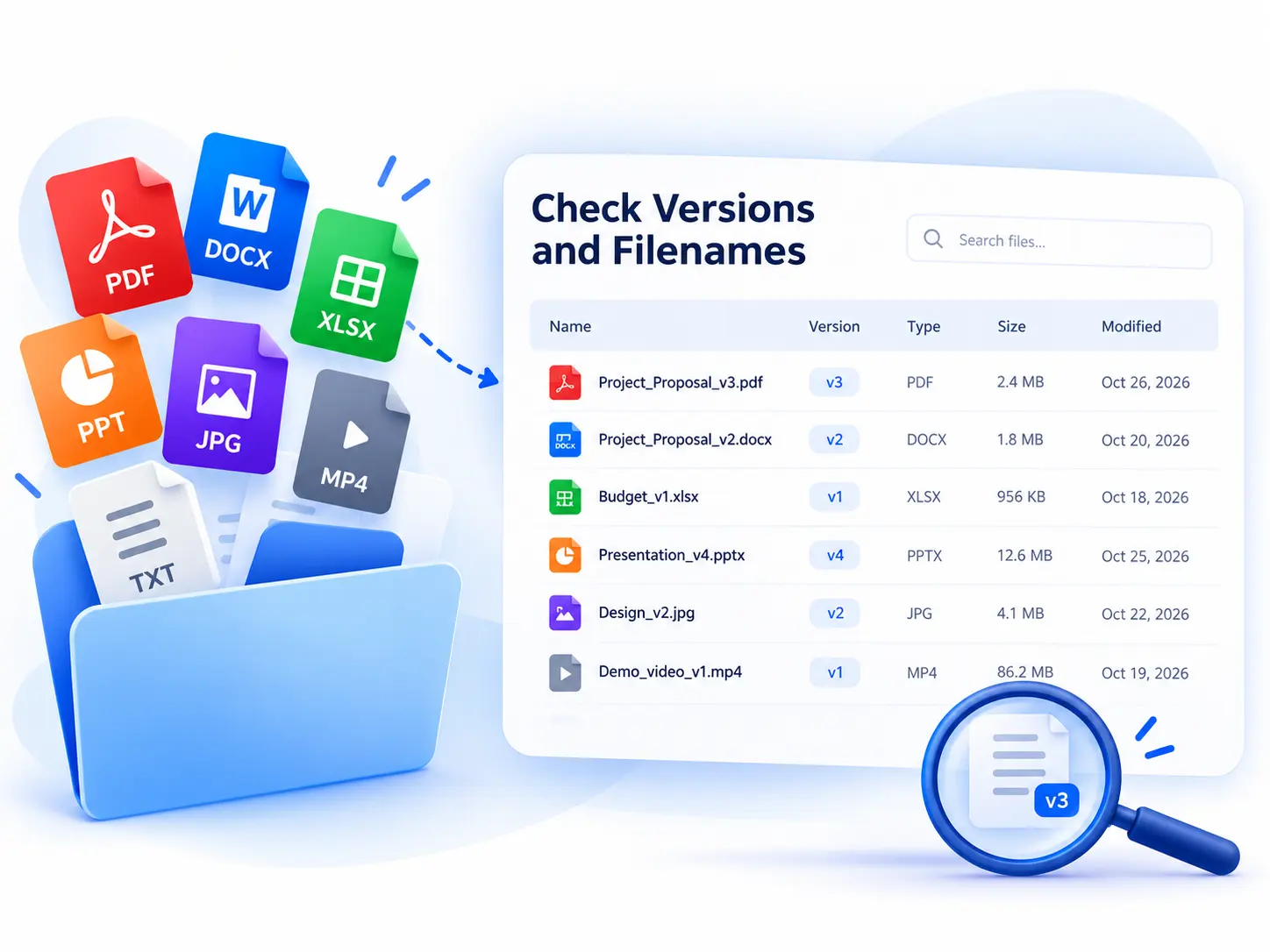
Check Versions and Filenames
Open the files locally and check that the batch contains the intended versions. Use unique filenames and remove drafts or private documents the recipient does not need.
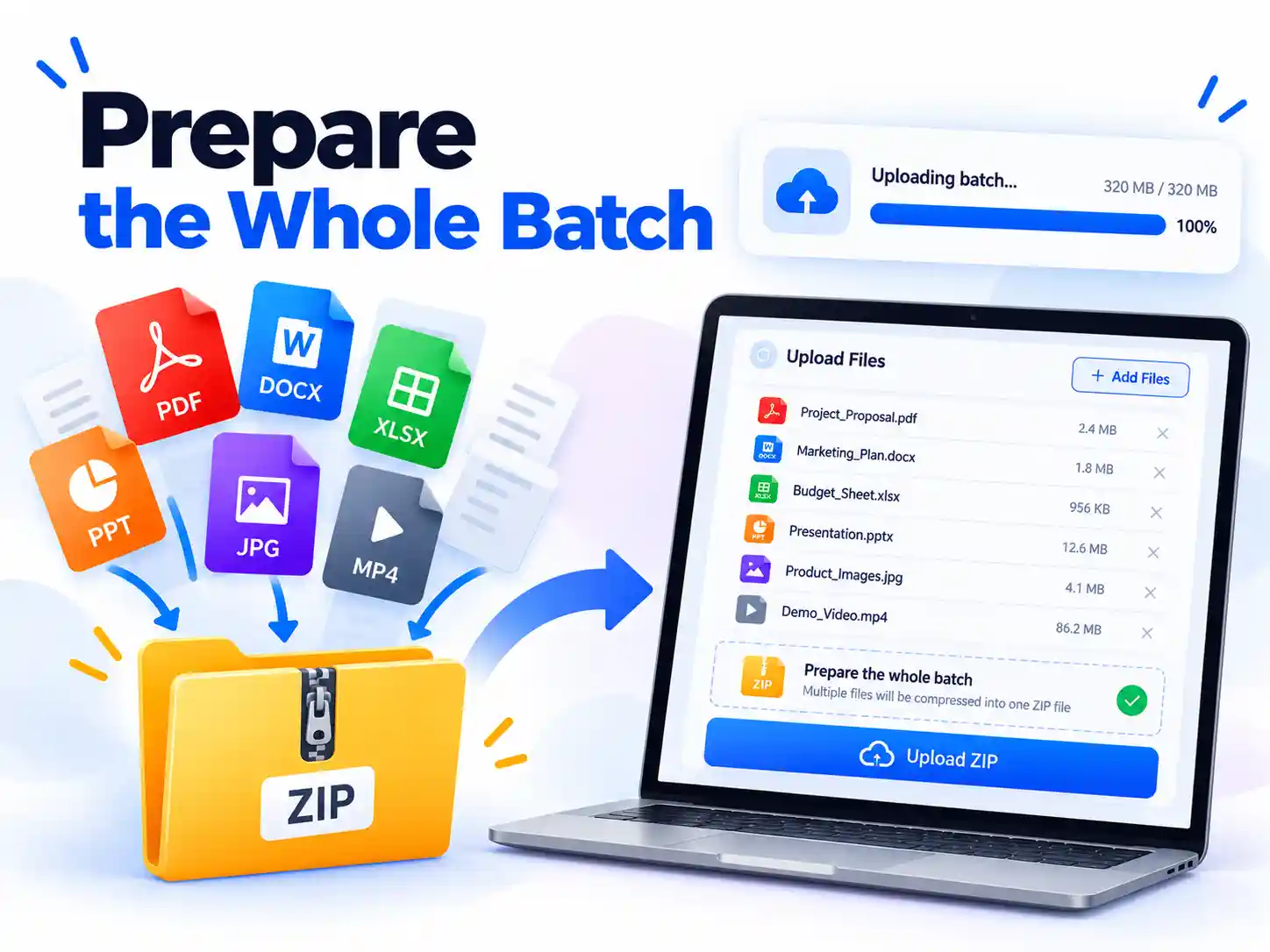
Prepare the Whole Batch
Select the entire batch at once; selecting a single file opens the sharing settings immediately. For selections above 500 MB, create a ZIP on your device before uploading.
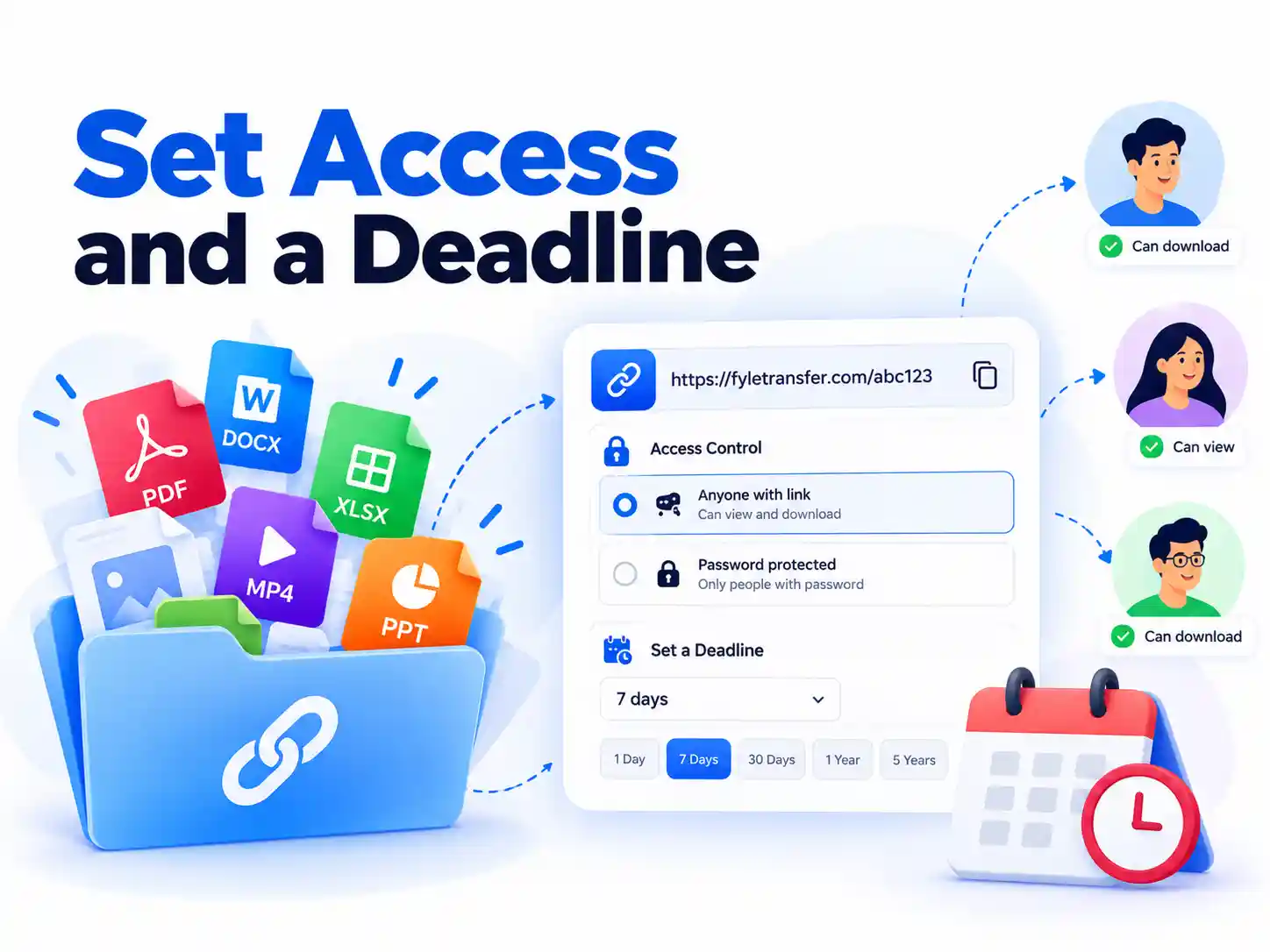
Set Access and a Deadline
For sensitive documents, set a password and send it through a separate channel. Tell the recipient to download and extract the ZIP before the link expires.
Know Who Handles Your Transfer
This guide covers FyleTransfer’s Send Files workflow, including browser ZIP preparation, password settings, and expiry controls. Review how the service handles your information before sending private material. A password and expiry help control link access; recipients can still keep downloaded copies.
Frequently Asked Questions
Practical answers about sending a batch of files through one link.
Didn't find what you're looking for?
Our support team is here to help. Reach out anytime for assistance.
Contact Support