
How to Transfer Files From Phone to PC Wirelessly: 5 Easy Methods
How to Transfer Files From Phone to PC Wirelessly: 5 Easy Methods
You take a photo on your phone, but you need it on your PC. You look for a USB cable, but you can't find one. Or you have a large video that won't fit in an email.
You don't need a cable to move files between your devices. There are several ways to transfer files from phone to PC wirelessly, even if you don't want to install another app.
You can use a web browser, Bluetooth, Quick Share, or cloud storage. Some methods need internet access, while others work without it.
This guide covers five ways to send files from your phone to your computer. It also explains how to share files and text through FyleTransfer's Local Network feature.
1. Transfer Files From Phone to PC Using FyleTransfer
A browser-based file-sharing tool can help when you want to move files without installing software.
FyleTransfer lets you upload files from your phone and open them on your PC through a link. It works in a web browser on Android, iPhone, Windows, and Mac.
You don't need to create an account to send files.
How to Send Files From Phone to PC With a Link
Follow these steps:
Open FyleTransfer Send Files on your phone.
Select the photos, videos, PDFs, or other files you want to send.
Choose an expiration time for your link.
Add a password if you want to limit access.
Upload your files.
Copy the sharing link or use the QR code.
Open the link on your PC.
Download your files.
You can upload up to 100 files in one batch.
When you select multiple files with a combined size of 500 MB or less, FyleTransfer can create a ZIP archive. For larger batches, you can create your own ZIP file before uploading.
This method helps when you need to move several files without sending each one through email.
How to Transfer Files From Phone to PC Using FyleTransfer Local Network
Need to move a photo, document, or note from your phone to your PC? If both devices use the same network, you can use FyleTransfer's Local Network feature.
It works through your web browser. You don't need a USB cable, a phone number, or a separate app.
FyleTransfer uses an IP-based system to provide shared workspaces for devices on the same network. It supports file uploads of up to 200 MB per file and lets you share text between devices.
You can choose from three options:
Public Room: Share files and text with others on the same network.
Join Private Workspace: Enter an existing private workspace.
Create Private Workspace: Set up a private space for selected people.
Both devices need an internet connection to use this feature.
Method 1: Share Files Using a Public Room
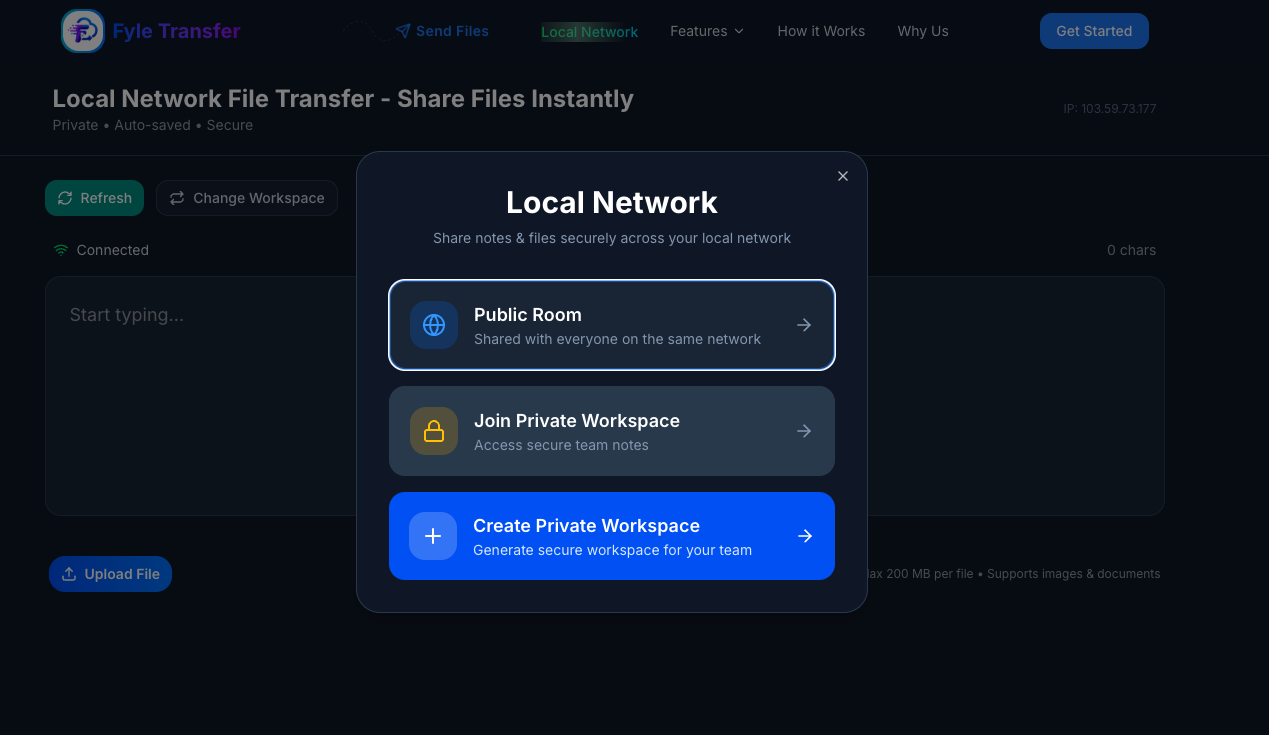
A Public Room works well when you want to share files with people on the same network.
For example, say you're at home and want to move a PDF from your phone to your laptop.
Follow these steps:
Connect your phone and PC to the same Wi-Fi network.
Open FyleTransfer Local Network on your phone.
Select the Public Room.
Tap Upload File and choose the PDF from your phone.
Wait for the upload to finish.
Open the same FyleTransfer Local Network page on your PC.
Select the Public Room.
Find the shared file and open or download it.
You can also type text into the workspace and access it from your other device.
The workspace saves shared content, so you don't need to send each item through a separate chat or email.
Keep in mind that a Public Room is shared with others who can access that room on the same network. Don't use it for private documents.
Method 2: Create a Private Workspace
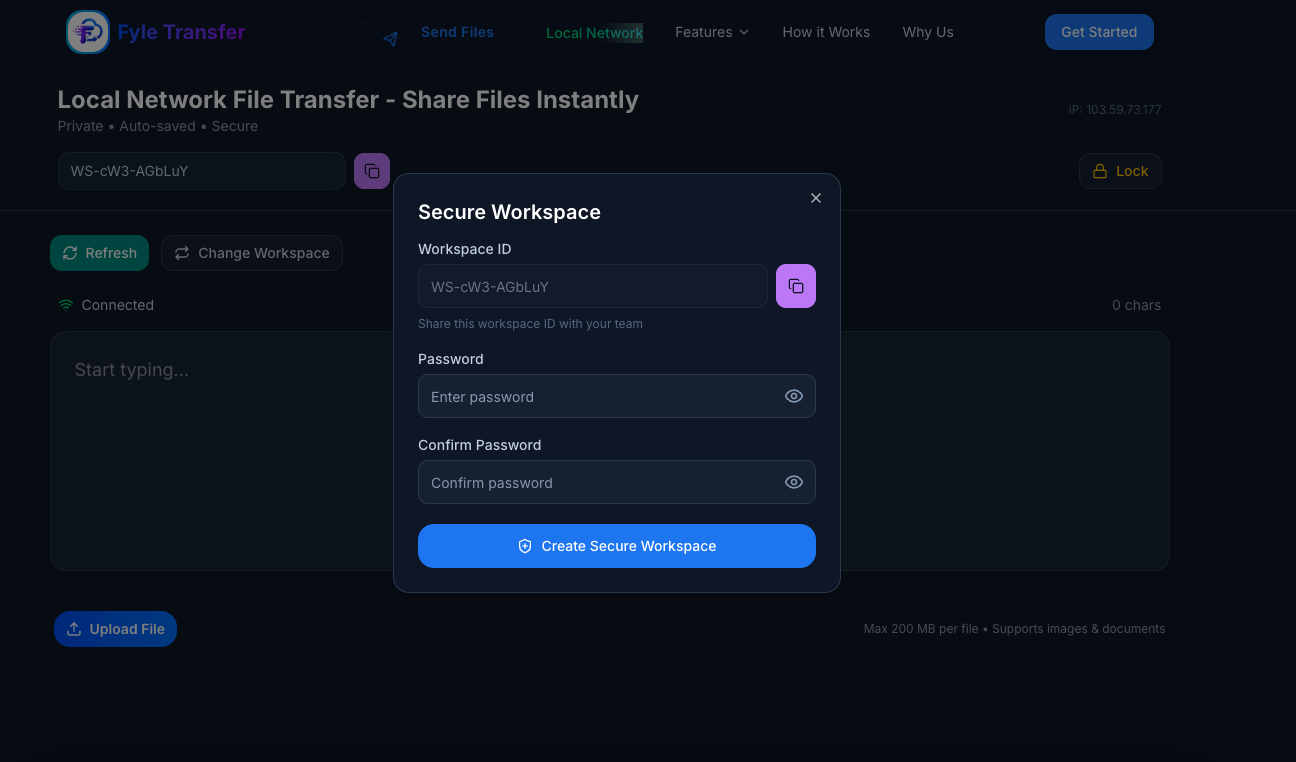
A Private Workspace is a better choice when you want to control who can access your shared content.
For example, you may need to move a work document from your phone to your PC without placing it in a Public Room.
Follow these steps:
Open FyleTransfer Local Network on your phone.
Select Create Private Workspace.
Complete the workspace setup and keep its access details.
Upload the file you want to share.
Open FyleTransfer Local Network on your PC.
Select Join Private Workspace.
Enter the workspace ID and password.
Open the shared file on your PC.
You can also use the Private Workspace to share notes, links, or other text.
Only give the workspace credentials to people who need access.
Method 3: Share Text Between Phone and PC
Sometimes you don't need to send a file. You may only want to copy a website link, an address, or a short note from your phone to your computer.
FyleTransfer Local Network supports text sharing as well.
Open the same Public Room or Private Workspace on both devices.
Type or paste your text into the workspace.
Access the shared text from your other device.
Copy the text and use it where you need it.
This saves you from sending a message to yourself each time you need a piece of text on another screen.
Other Useful Local Network Features
FyleTransfer also includes a few controls that help you manage your workspace.
Auto-save: Shared content is saved in the workspace.
Refresh: Update the workspace view when you need to check for new content.
Change Workspace: Switch between Public and Private Workspaces.
Connection Status: Check whether your workspace connection is active.
File Uploads: Share supported images and documents, with a limit of 200 MB per file.
These features make Local Network useful for small day-to-day tasks, whether you're working alone or sharing content with people on the same network.
2. Transfer Files From Phone to PC Using Bluetooth
Bluetooth is a useful option when you have no internet connection.
Most Android phones and Windows laptops support Bluetooth. You can use it to send small photos, PDFs, and documents.
The main drawback is speed. Large videos can take a long time to transfer.
Steps to Transfer Files Using Bluetooth
Turn on Bluetooth on your Android phone.
Open Settings → Bluetooth & devices on your Windows PC.
Turn on Bluetooth and pair your devices.
Open the Bluetooth file transfer option on Windows.
Select Receive files.
Open the file on your phone.
Tap Share → Bluetooth.
Select your PC and complete the transfer.
Bluetooth works best for small files. For large files, a Wi-Fi-based method may save time.
Standard Bluetooth file sharing is not a general solution for sending files from an iPhone to a Windows PC.
3. Transfer Files From Android to PC Using Quick Share
Quick Share is designed for nearby file transfers.
Google provides Quick Share for supported Android phones and Windows computers. You can use it to move photos, videos, and documents without a USB cable.
It uses nearby wireless connections rather than making you upload each file to cloud storage.
How to Use Quick Share
Install Google's Quick Share for Windows on your PC.
Turn on Wi-Fi and Bluetooth on both devices.
Open Quick Share on your PC.
Set your device visibility.
Select a file on your Android phone.
Tap Share → Quick Share.
Choose your PC.
Accept the transfer if asked.
Keep both devices near each other until the transfer finishes.
If your phone can't find your PC, check Bluetooth, Wi-Fi, and device visibility.
How to Transfer Files From Samsung Phone to PC
Samsung phones offer several ways to send files to a computer.
For supported Samsung Galaxy phones, Quick Share is one option.
Open Gallery or My Files on your Samsung phone.
Select the photos or documents you want to send.
Tap Share → Quick Share.
Choose your Windows PC.
Accept the transfer on your computer.
You can also use FyleTransfer in Samsung Internet or Chrome if you prefer a browser-based method.
For example, you can upload photos through FyleTransfer and open the generated link on your PC.
4. Transfer Files From Phone to PC Using Google Drive
Google Drive lets you store files online and access them from another device.
This method helps when your phone and PC are in different places.
You need an internet connection and a Google account.
Steps to Transfer Files Using Google Drive
Open Google Drive on your phone.
Sign in to your account.
Tap + and select Upload.
Choose your files.
Wait for the upload to finish.
Open Google Drive on your PC.
Sign in with the same account.
Find your files and download them.
Google Drive works well when you want to keep files online.
But your account has a storage limit. Large uploads can also take time on a slow connection.
If you only need to move a file once, a temporary sharing link may suit your needs better.
5. Transfer Small Files From Phone to PC Using Email
Email is another way to move small documents.
For example, you may have a resume or PDF on your phone that you need to edit on your PC.
You can send it to your own email address.
Steps to Transfer Files Using Email
Open Gmail or another email app.
Create a new email.
Enter your own email address.
Attach the file.
Send the email.
Open your inbox on your PC.
Download the attachment.
Gmail supports direct attachments up to 25 MB. Larger files may be shared through Google Drive.
Email works for small files, but it is not ideal for large videos or many documents.
How to Transfer Files From PC to Phone Wirelessly
You may also need to move files in the other direction.
For example, you finish editing a document on your PC and want to open it on your phone.
You can use the same file-sharing methods.
Steps to Send Files From PC to Phone Using FyleTransfer
Open FyleTransfer Send Files on your PC.
Select the file you want to send.
Set your link expiration and optional password.
Upload the file.
Copy the sharing link.
Open the link on your phone.
Download the file.
If both devices use the same network, you can also use a Public Room or Private Workspace in FyleTransfer Local Network.
This can help when you want to share text, links, or supported files between your devices.
Which Method Is Best for Transferring Files From Phone to PC?
The best method depends on your devices, file size, and internet access.
For small offline transfers, Bluetooth can work well.
For nearby Android and Windows devices, Quick Share is a useful option.
For browser-based file sharing, FyleTransfer lets you create a link or use a shared workspace.
Common Problems When Transferring Files Wirelessly
File transfers can fail for several reasons. Here are some common issues and ways to fix them.
My Phone Cannot Find My PC
Check that both devices have the right wireless settings turned on.
For Quick Share, check device visibility.
For FyleTransfer Local Network, make sure both devices use the same network and have internet access.
My File Transfer Is Too Slow
Transfer speed depends on the file size and connection.
Bluetooth may take a long time with large files. Weak Wi-Fi can also slow down a transfer.
Use a stable connection and avoid switching networks while files are being sent.
I Cannot Send Multiple Files
Some methods make it hard to send many files at once.
You can create a ZIP archive before uploading.
FyleTransfer also supports multiple file uploads and can create a ZIP archive when the selected files have a combined size of 500 MB or less.
The Downloaded File Won't Open
Check whether the download finished.
If you downloaded a ZIP archive, extract it first.
If the file still won't open, check whether your computer supports its format.
Frequently Asked Questions
Can I transfer files from phone to PC without a USB cable?
Yes. You can use Bluetooth, Quick Share, Google Drive, email, or FyleTransfer.
How do I transfer files from Android to PC wirelessly?
You can use Quick Share on supported devices. You can also upload files through FyleTransfer and open the sharing link on your PC.
Can I transfer files from iPhone to Windows PC?
Yes. You can use cloud storage or browser-based file sharing. FyleTransfer works through a browser on both devices.
Can I transfer files without internet access?
Yes. Bluetooth and supported local wireless transfer methods can work without internet access. FyleTransfer's sharing links and Local Network feature require internet access.
How can I transfer multiple files from phone to PC at once?
You can select multiple files in a supported transfer tool. FyleTransfer supports up to 100 files in one batch. Eligible batches totaling 500 MB or less can be packed into a ZIP archive.
Is FyleTransfer Local Network the same as offline LAN sharing?
No. FyleTransfer uses an IP-based workspace system for devices on the same network, but it requires internet access. It should not be confused with offline peer-to-peer file transfer.
Choose the File Transfer Method That Fits Your Needs
You don't need a USB cable each time you want to move files from your phone to your PC.
Bluetooth works for small offline transfers. Quick Share helps with nearby Android and Windows devices. Google Drive is useful when you want to store files online.
If you want to share files through a browser, FyleTransfer lets you create a link and open it on another device.
When your phone and PC use the same network, FyleTransfer Local Network offers Public Rooms and Private Workspaces for sharing files and text.
Choose the method that suits your devices, connection, and the type of files you need to move.
About the Author

Apurva Kulkarni
SEO Analyst • 4+ years experience
I am Apurva Kulkarni, an SEO Analyst with 4+ years of experience in technical SEO, content optimization, and data analytics.
- Technical SEO
- Content Optimization
- Data Analytics
- Organic SEO
- SEO Audits
- Keyword Research