
How to Send Files From iPhone to Android (and Back)
How to Send Files From iPhone to Android (and Back)
Need to send a photo from your iPhone to an Android phone? Or move a video from Android to iPhone?
You have a few ways to do it.
Both phones use different systems. Some sharing tools work on one system but not the other. This can make a simple file transfer hard.
You can use a local Wi-Fi network, send a file link, or use cloud storage. A computer can also help.
This guide shows you how to send files from iPhone to Android and back. You will learn how to share photos, videos, PDFs, and other files.
You will also learn how to use FyleTransfer's Public and Private Workspaces, share files across long distances, and fix common problems.
Can You Share Files Between iPhone and Android?
Yes. You can share files between iPhone and Android.
You do not need the same phone brand. You just need a method that works with both devices.
For example, you may want to send photos from your iPhone to a family member's Android phone. Both phones are at home and use the same Wi-Fi.
In this case, local network sharing may work well.
But what if your friend lives in another city?
You can upload the file and send a download link. Your friend can open that link on their phone.
Here are some common ways to share files.
The best choice depends on where the phones are and what you want to send.
Method 1: Transfer Files Between iPhone and Android on the Same Wi-Fi
If both phones use the same Wi-Fi network, you can try FyleTransfer Local Network.
It lets devices on the same network share files and text through a workspace.
You can create a Public Workspace or a Private Workspace.
You do not need to send a file link through WhatsApp or email for this method.
Both phones can use their web browsers.
Step 1: Connect Both Phones to the Same Wi-Fi
Start with your iPhone.
Open Settings.
Tap Wi-Fi.
Choose your home or office network.
Enter the password if needed.
Check that Wi-Fi is connected.
Now take your Android phone.
Open Settings.
Tap Wi-Fi.
Choose the same network.
Enter the password.
Check the connection.
Both phones must use the same local network.
For example, if your iPhone uses home Wi-Fi but your Android phone uses mobile data, local sharing may not work.
You can also use a phone hotspot if both devices can access the same local network.
Some guest networks block devices from seeing each other. If the phones cannot connect, check your network settings.
Step 2: Open FyleTransfer Local Network
Open Safari on your iPhone.
Go to:
https://fyletransfer.com/local-network-file-transfer
Open the same page in Chrome or another supported browser on Android.
You will use the Local Network feature to connect the two phones.
Choose the workspace type that fits your needs.
Step 3: Choose Public or Private Workspace
FyleTransfer has two workspace options.
Public Workspace
A Public Workspace lets you share content with devices on the same network without the private workspace's login step.
This may suit a home network where you trust the people who can connect.
For example, you may want to send a few family photos to another phone.
Private Workspace
A Private Workspace uses a username or workspace ID and a password.
People need the right details to join.
This may suit work files, school documents, or content you do not want to place in a public workspace.
A private workspace adds access control. It does not mean you should treat all files as safe to share.
Step 4: Create a Public Workspace
Choose Public Workspace on the Local Network page.
Then follow these steps:
Open the Public Workspace option.
Create or enter the public workspace.
Keep the workspace open on your first phone.
Open the Local Network page on the second phone.
Join the public workspace from the same network.
Check that both devices can access the workspace.
You can now use the file and text sharing options.
The button names may differ based on the current website design.
A public workspace is best for files that do not need private access.
Do not use it for bank records, passwords, or other sensitive data.
Step 5: Create a Private Workspace
Want more control over who can join?
Choose Private Workspace.
On your first phone:
Open the Local Network page.
Choose Private Workspace.
Select the option to create a workspace.
Set the username or workspace ID.
Create a password.
Save the workspace details.
Now open the same page on your second phone.
Choose Private Workspace.
Select the option to join a workspace.
Enter the workspace ID or username.
Enter the password.
Join the workspace.
Once both phones connect, you can share files through the workspace.
For example, your Android phone can create the workspace. Your iPhone can join it.
You can also reverse these roles.
Step 6: Send Files From iPhone to Android
Now you can share your first file.
On your iPhone:
Open the connected workspace.
Find the file sharing option.
Choose a photo, PDF, or other supported file.
Select the file.
Use the workspace's share control.
On Android:
Open the same workspace.
Find the shared file.
Open or download it.
Save it to your phone.
If you cannot find the downloaded file, open your Android file manager.
Check the Downloads folder.
The save location may change based on your browser.
Step 7: Transfer Files From Android to iPhone
You can use the same workspace to transfer files from Android to iPhone.
Open the workspace on Android.
Choose the file you want to send. Use the sharing option to make it available in the workspace.
On your iPhone, open that workspace and find the file.
Download or open it.
For a PDF, check the Files app.
For a photo, you may need to use the Share menu to save it to Photos.
The exact save steps depend on your iPhone and browser.
Step 8: Share Text Between Both Phones
You can also share text through FyleTransfer Local Network.
Suppose you found a useful website on Android. You want to open it on your iPhone.
You can copy the link and share it through the workspace.
Open the text sharing option. Paste the link and share it.
Then open the workspace on your iPhone to access the text.
This can help with website links, notes, and short messages.
What Happens if Your Network Changes?
Local sharing depends on the network.
FyleTransfer uses IP-based local access. If your device's IP address changes, access may stop.
For example, you may leave home and connect to another Wi-Fi network.
When this happens, return to the correct network and reconnect the workspace.
If the old workspace no longer works, create or join a new one.
Use this method when: Both phones are close by and share the same trusted network.
Method 2: Send Files From iPhone to Android Using an Online Link
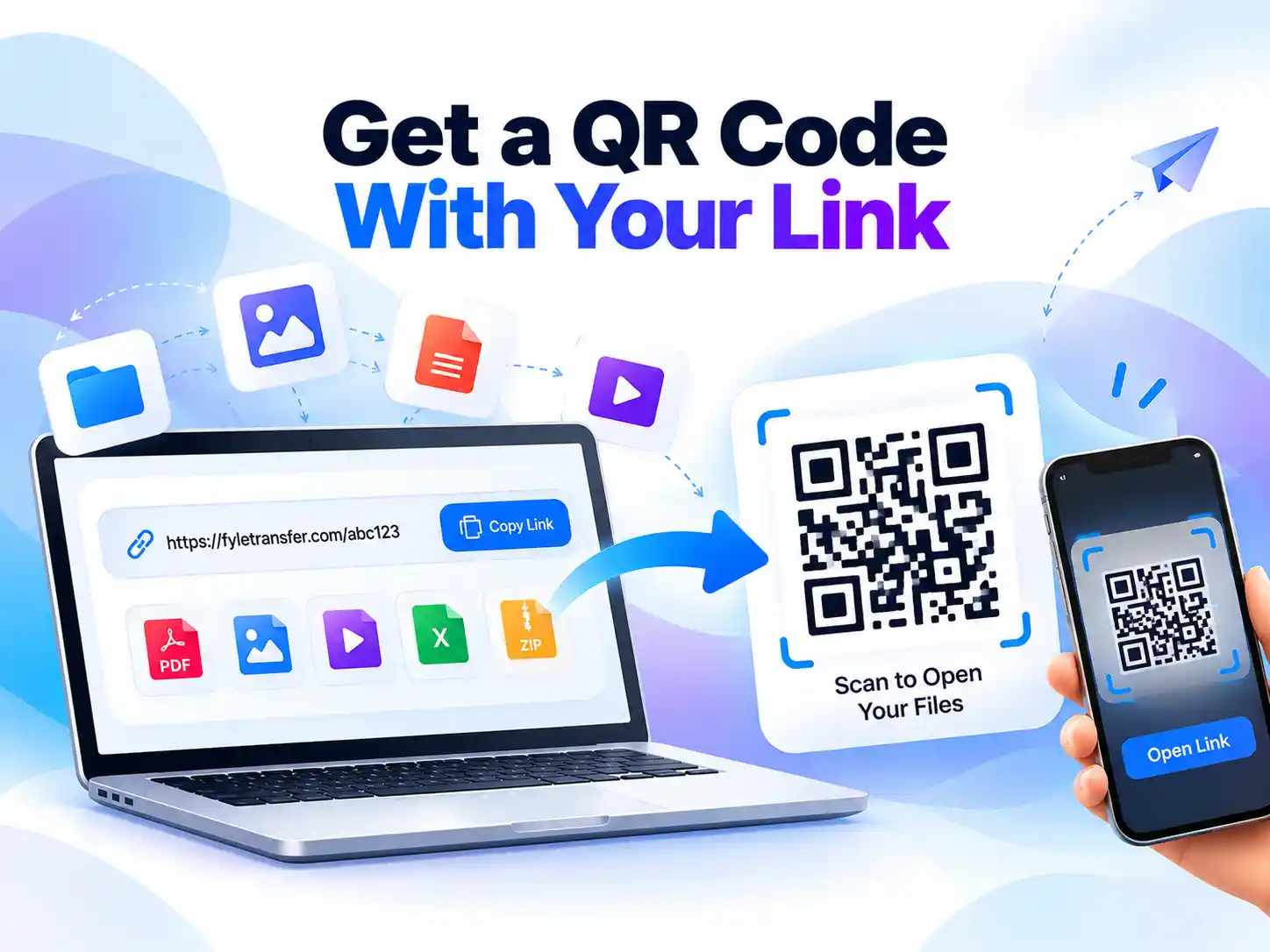
What if the two phones are far apart?
You can use FyleTransfer Send Files.
This method does not need both phones on the same Wi-Fi.
You upload a file and get a link. Then you send that link to the other person.
They open it and download the file.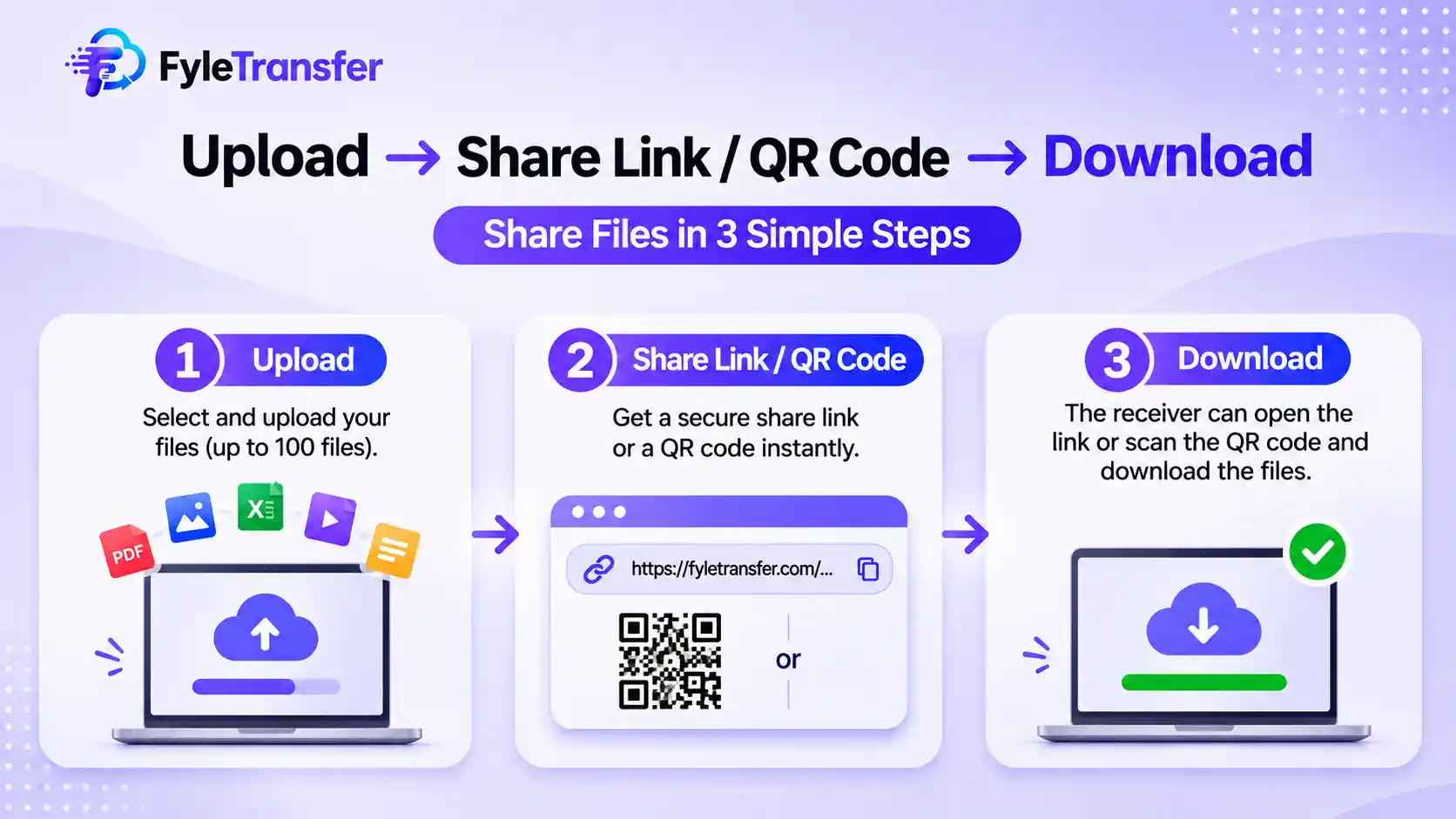
Step 1: Open the Send Files Page
Open Safari on your iPhone.
Visit:
https://fyletransfer.com/send-files
The page lets you choose files for an online transfer.
You can use it for photos, videos, PDFs, ZIP files, and other supported files.
Step 2: Select Your Files
Choose the files you want to send.
You can select files from your phone through the browser's file picker.
FyleTransfer supports up to 100 files in one upload.
If you select more than one file, it can create a ZIP when the combined size is within 500 MB.
A ZIP is one file that holds other files.
This can make it easier to send a group of documents.
For larger groups, the automatic ZIP feature does not apply. You can make your own ZIP file if needed.
Check the current upload rules before sending a large file.
Step 3: Set a Link Expiration Date
You may not want a file link to stay active for years.
FyleTransfer lets you choose an expiration period from 1 day to 5 years.
For example, you may want to share a PDF for one day.
Or you may need a work file to stay available for several weeks.
Choose a period that fits your needs.
FyleTransfer deletes files after their set expiration.
Make sure the receiver downloads the file before the link expires.
Step 4: Add a Password if Needed
You can add a password to your file link.
This helps control who can open it.
Choose a strong password.
Do not use simple passwords such as 123456 or your name.
If you share the link through email, consider sending the password through another trusted channel.
The receiver will need the password to access the protected file.
Step 5: Upload Your Files
Start the upload.
Keep the page open until it finishes.
A large video may take more time than a small PDF.
Your upload speed also depends on your internet connection.
If the upload fails, check your connection and try again.
Step 6: Copy the Link or QR Code
After the upload, FyleTransfer gives you a sharing link.
Copy it.
You can send the link through WhatsApp, email, or another messaging app.
You can also use the QR code.
For example, if your friend is sitting next to you, they can scan the QR code with their phone.
Step 7: Download the Files on Android
On the Android phone:
Open the shared link.
Enter the password if needed.
Find the download option.
Download the file.
Open it from your Downloads folder.
Make sure the file opens before the link expires.
How to Send Files From Android to iPhone
The same steps work in reverse.
Open FyleTransfer Send Files on Android.
Select your files and choose the sharing settings.
Upload them and copy the link.
Send the link to the iPhone user.
They can open it in Safari and download the files.
Use this method when: The phones are in different places or use different networks.
Method 3: Share Files Between iPhone and Android With Google Drive
Google Drive can help when you want to keep files online.
You can upload a file from one phone and open it on another.
It works with both Android and iPhone.
How to Share a File With Google Drive
Open Google Drive on your phone.
Sign in to your Google account.
Upload the file.
Find the file in Drive.
Open the sharing settings.
Choose who can access it.
Copy the link.
Send it to the receiver.
The receiver may need to sign in if you restrict access to certain accounts.
Google Drive works well for files you want to store or edit over time.
A file-transfer link may suit a one-time share.
Choose based on what you need to do with the file after sending it.
Method 4: Send Large Videos From iPhone to Android
Large videos can be hard to send through chat apps.
Some apps have file-size limits. Others may reduce video quality when you send a normal video message.
If you want to keep the original file, check how your chosen app handles it.
Use a File-Sharing Link
You can upload a supported video file through an online file-sharing service.
Then send the download link.
The receiver can download the original uploaded file rather than a chat-compressed version.
Check the service's file-size limit first.
Do not assume that all video sizes will work.
Use a Computer
If the video is too large for your chosen online method, a computer may help.
Copy the video from your iPhone to the computer.
Then move it to Android through a supported USB transfer method.
This can help when you have several large videos.
Check the Video Format
A video may download but fail to play.
This can happen when the receiving phone does not support the video format or codec.
A codec is the way a device stores video data.
Try a video player that supports the file.
You can also convert a copy to a format that works on both phones.
Keep the original until the new file plays.
Method 5: Transfer Files With a Computer
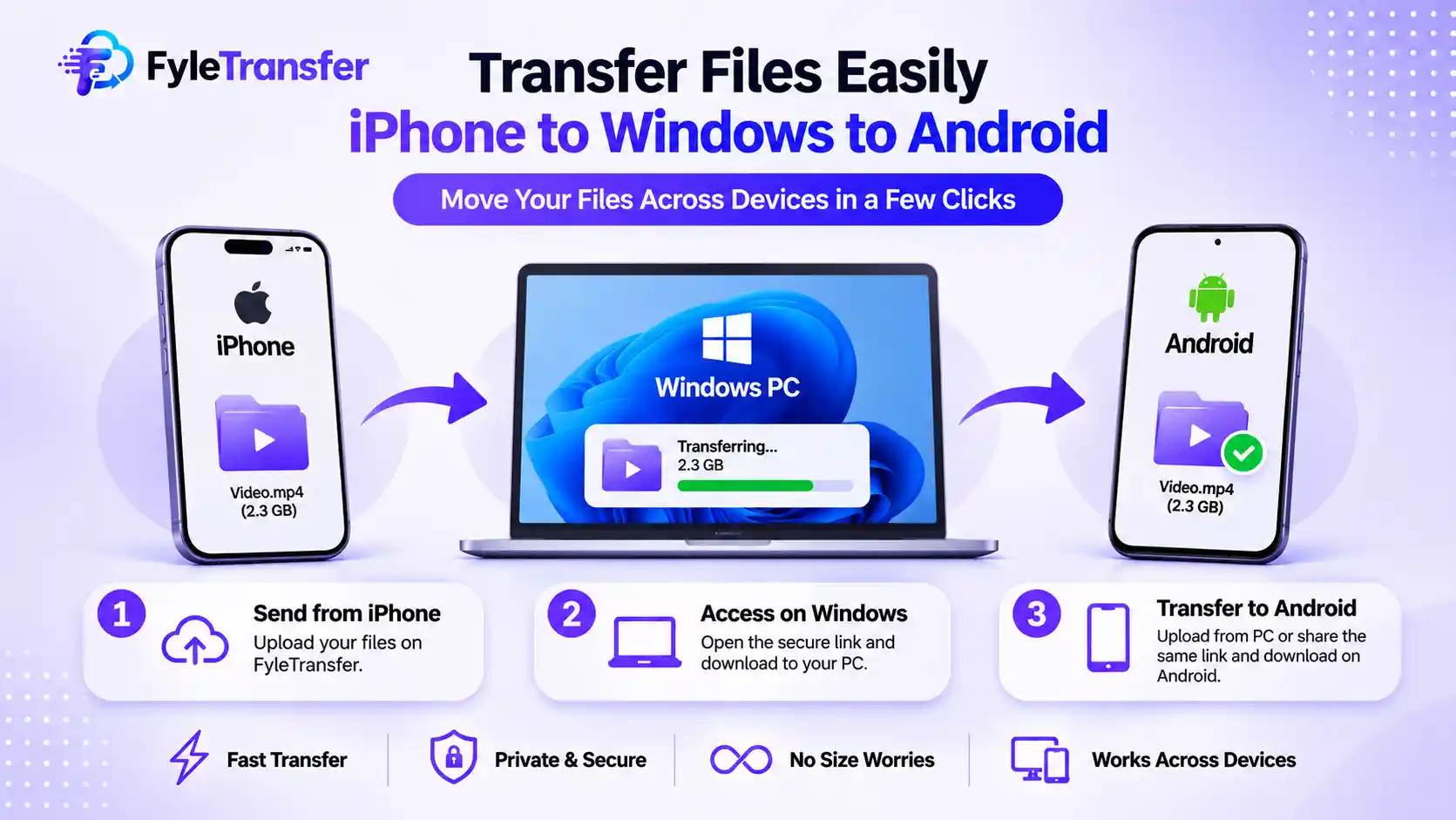
You can also move files between phones through a Windows PC or Mac.
This can help when you want to transfer many photos or documents.
Move Photos From iPhone to Android Using Windows
Connect your iPhone to the computer.
Unlock the phone.
Allow access if asked.
Open Windows Photos or File Explorer.
Import the photos or videos.
Save them on the computer.
Connect your Android phone.
Select File Transfer mode if asked.
Copy the files to Android.
Not all iPhone app files appear in Windows File Explorer.
For those files, use the app's export option or a supported Apple file-sharing tool.
Move Files From Android to iPhone
Connect Android to the computer.
Copy the files you want to move.
Then use a supported tool to send them to your iPhone.
For example, you can place documents in iCloud Drive and open them through the Files app.
You may need a different method for photos, music, or app data.
You cannot copy files into any iPhone folder as you would with a USB drive.
Can You Use Quick Share Between Android and iPhone?
Some Android phones support sharing with Apple devices through Quick Share and AirDrop.
Support depends on the Android phone and its software.
On a supported phone, you can select a file, tap Share, and choose Quick Share.
The iPhone user may need to set AirDrop visibility to Everyone for 10 Minutes.
Then the Android user can select the iPhone and send the file.
On phones without direct AirDrop support, Quick Share may offer a QR code method. That method needs internet access.
Check the current instructions for your device before you start.
Do not assume that all Android phones can send files to an iPhone through AirDrop.
How to Share Photos Without Losing Quality
Some messaging apps reduce photo quality.
This may not matter for a casual photo.
But it can matter when you share photos for print, design, or work.
To keep the original file, choose a method that does not compress or convert it.
For example, you can send the original photo as a file.
After the transfer, check its size and image dimensions.
If the photo does not open, check its format.
Some iPhones save photos as HEIC files. Not all Android apps support them.
You may need to convert a copy to JPG.
Keep the original photo if quality matters.
Common iPhone to Android File Transfer Problems
File transfers can fail for many reasons.
Here are some checks that may help.
Both Phones Use Wi-Fi but Cannot Connect
Make sure both phones use the same local network.
Check that one phone is not using mobile data.
Some guest Wi-Fi networks block devices from reaching each other.
If you use a VPN, check whether it blocks local access.
Private Workspace Does Not Open
Check the workspace ID or username.
Enter the correct password.
If the device changed networks, reconnect it.
You may need to create or join the workspace again.
The File Does Not Appear
Make sure both devices joined the right workspace.
Check whether the sender finished sharing the file.
Look in the Downloads folder.
Try a small test file if the problem continues.
The Download Link Has Stopped Working
The link may have expired.
Check whether you copied the full link.
If the sender used a password, enter the right one.
Ask for a new link if the old file has expired.
The Video Will Not Play
The file may use a format your phone cannot open.
Try another video player.
You can also convert a copy to a supported format.
The Transfer Takes Too Long
Check your Wi-Fi signal.
For online transfers, test your internet connection.
Large files need more time to upload and download.
Try a stable network and keep the browser open.
Is It Safe to Share Files Between iPhone and Android?
The safety of a file transfer depends on the method you use.
For local sharing, use a network you trust.
A Private Workspace adds a password-based access step.
For online sharing, use a password when the file needs more protection.
Set a link expiration period that fits your needs.
Check who will receive the file before you share it.
Do not send private files to an unknown person.
A password does not prove that a service uses end-to-end encryption.
For sensitive work files, review the service's security and privacy details before uploading them.
Frequently Asked Questions
Can I send files from iPhone to Android without an app?
Yes. You can use a browser-based file-sharing service. Upload the file, create a link, and send it to the Android user. They can open the link in a browser.
How do I transfer files from Android to iPhone without a cable?
You can use an online file-sharing link or cloud storage. If both phones share a local network, you can also try a compatible local file-sharing workspace.
Can I transfer files between iPhone and Android on the same Wi-Fi?
Yes. FyleTransfer Local Network supports file and text sharing through Public and Private Workspaces on the same network.
What is the difference between Public and Private Workspace?
A Public Workspace does not use the private workspace's login step. A Private Workspace requires a username or workspace ID and password.
How can I send large videos from iPhone to Android?
Use a service that supports the video size. You can also use a computer. Check file limits, storage space, and video format before you start.
Can I send photos from Android to iPhone without losing quality?
Yes. Send the original photo file through a method that does not compress or convert it. Check the downloaded file if you need to keep the same quality.
Conclusion
You can send files between iPhone and Android in several ways.
If both phones use the same network, FyleTransfer Local Network lets you share files and text through Public or Private Workspaces.
If the phones are far apart, you can upload files with FyleTransfer Send Files and share a link or QR code.
Google Drive can help when you need online storage. A computer may suit large groups of files.
Choose the method that fits your devices and file size.
For phones on the same network, use FyleTransfer Local Network.
For files you need to send across different networks, try FyleTransfer Send Files.
About the Author

Myilraj G
Organic SEO and Business Discoverability Consultant, Blogger, and Founder of Raj Softech Solutions India Pvt Ltd
Myilraj. G is an Organic SEO and Business Discoverability Consultant based in Coimbatore, Tamil Nadu. He helps businesses improve their visibility across Google Search, Google Maps, AI Overviews and AI-powered search platforms through organic SEO, Local SEO, Google Business Profile optimisation, content strategy and website discoverability.
- Business Discoverability
- Organic SEO
- Local SEO
- Technical SEO
- Google Business Profile
- AI SEO
- GEN SEO
- SXO
- Content Strategy
- AI Overviews Optimization
- WordPress Website Design
- SEO Website Audit
- Professional Blogging
- Lead Generation through SEO