
How to Transfer Files Between Devices on the Same Wi-Fi
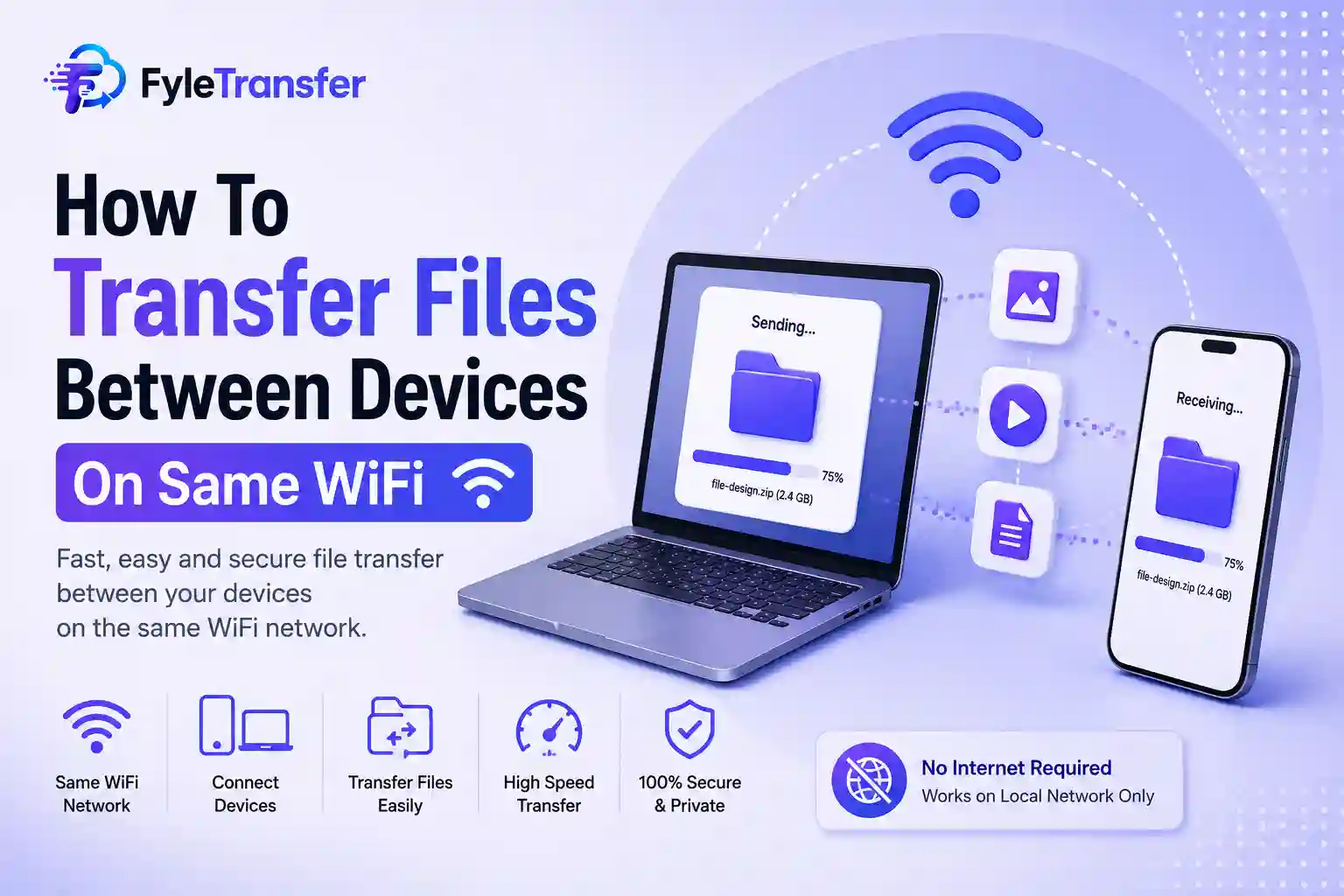
We have all been there: you need to move a video from your phone to your laptop and using cloud storage feels like too much for something so small. If both devices are on the same Wi‑Fi network, there is a faster way. You can send the file across your local network instead of sending it through an outside server first. Devices that are on the same network can usually talk to each other directly. That is what makes it possible to transfer files between devices on the Wi‑Fi without much trouble. It is worth noting from the beginning that this still requires an internet connection to work with a tool such as FyleTransfer, and we will talk more about that later. Below, we will walk through how the same‑Wi‑Fi transfers work, the ways to do it depending on your setup, and where an internet connection comes into play. When two devices join the same Wi‑Fi network, they become part of the same local area network (LAN), which lets them talk to each other directly. Your router builds a network that connected devices can use to communicate. The usual route for sharing a file looks like this: Device A → Internet → Cloud Server → Internet → Device B. The same Wi‑Fi transfer skips most of that: Device A → Local Wi‑Fi Network → Device B. Because the file itself does not have to make the trip to a remote server, you save on the upload and download wait. Both devices still need to be on the reachable network, and the app or method you are using must actually support this kind of direct transfer rather than just a cloud upload. Good to know: some local methods (like Windows or Mac network sharing or SMB) do not need internet access at all because they rely only on the router’s local network. Browser‑based tools such as FyleTransfer are a little different: they need an internet connection to load the site, discover devices, and set up the transfer, even though the file itself still moves across your Wi‑Fi. This approach helps with things like: Photos and videos PDFs and other documents Work files and presentations ZIP folders and backups Large media files and project folders There are a few situations where a local transfer is truly the better option: 1. You are moving large files. Uploading a multi‑gigabyte video to the cloud only to download it later takes a long time for no good reason. A local transfer skips the upload entirely. 2. You are on limited data. If you are tethering, on a metered connection, or just trying to stay under a data cap, a local transfer means the file never uses your internet data, even though the app still needs a connection to set up the transfer. 3. It is simply faster. Speed depends on your devices, router, and the sharing method itself. On a decent home network, a local transfer can easily outpace uploading and downloading through a slow internet connection. 4. You want to keep it private. For sensitive data, many prefer that the file never touches an outside server and stays inside their own network from start to finish. 5. Your devices are already there. If you are moving something from your phone to your own laptop, opening a full cloud‑upload flow is a lot of extra steps for a transfer that could happen in seconds over Wi‑Fi. There is more than one way to do this, and the right way depends on your devices, how comfortable you are with settings menus, and how big the files are. The route for most people is a file‑sharing tool built to find and connect devices on the same network automatically without folder permissions or network settings. The general flow looks like this: Connect both devices to the same Wi‑Fi network. Open the app or site on both devices. Pick the files you want to send. Select the device you are sending to. Approve the transfer on the receiving end. Let it transfer over the network. Double‑check everything came through. * Connect both devices to the Wi‑Fi network. When done correctly this whole process happens without the files ever touching a server. Connect both computers to the same network. Turn on network discovery. Enable file and printer sharing. Pick the folder you want to share. Set sharing permissions. Access it from the second PC. Windows has builtin tools for sharing folders between PCs on the network. It takes a bit of setup but it works well for a home or office where the same computers exchange files regularly. Only turn this on for networks you trust and keep an eye on which folders are exposed. Macs have a built-in option. Turn on File Sharing in System Settings choose which folders are shared and decide who can access them. Other devices on the network can then connect to the Mac. This is a fit for a household or small office where a few computers constantly share documents or media. SMB (Server Message Block) quietly powers a lot of network file sharing. Depending on your setup it can connect: * Windows to Windows * Windows to Mac * Mac to Windows * A computer to a phone or tablet * A computer to network‑attached storage SMB is better suited to access to shared files than a quick one‑off transfer. If the person you are sending to in the next room locally wins on speed and simplicity. If they are in another city you will need the internet‑based option no matter what. There is no single number. Speed depends on several variables: Your Wi‑Fi. Router How far you are from the router Signal strength Network congestion Device hardware and storage speed The transfer. Protocol How many files and how large Other devices hogging the network Interestingly a thousand tiny files can sometimes take longer than one file of the same total size because each file adds a bit of overhead. If speed matters, stay close to the router. Avoid running the transfer while other devices use the network heavily. Skip file transfers over Wi‑Fi. Stick to file‑sharing apps you trust. Keep your OS and apps up to date. Use a password or authentication step when offered. Turn off shared folders once you are done. Keep sharing permissions as narrow as possible. Double‑check you are sending to the device. Don’t leave folders open longer than needed. A home or office Wi‑Fi network you control is a safer place for this than an open Wi‑Fi at a coffee shop, airport or hotel. Devices can’t find each other – Make sure both are really on the Wi‑Fi network. Guest networks often isolate devices from each other which blocks discovery. Firewall is getting in the way – A firewall can block discovery or sharing. Allow the app or sharing feature you are using instead of turning the firewall off completely. Transfer is crawling – Move to the router, cut down on other network activity and check whether either device has a weak signal. It works with the internet. Not without it – This usually means the tool relies on an outside server for authentication or discovery even for a "local" transfer. If offline transfers are the goal, look for a method built to run entirely on the network. Shared folder won’t open – Check your permissions whether network discovery is switched on and that user authentication is set up correctly. Moving gigabytes, at once? A little prep goes a way. Make sure both devices have free storage before you start keeping them plugged into power for anything that will take a while and avoid switching networks mid‑transfer. When you have a folder that contains small files it is often easier to zip them into a single archive before proceeding. After the zip operation finishes take a moment to confirm that all files have been transferred correctly before you delete the files. Same‑Wi‑Fi transfer is worth reaching for when: - Both devices are in the room or building. - You are sending something - You would rather skip a cloud upload. - You are just moving files between your devices. - You are sharing a home or office network. - You want your file to stay off a third‑party server. For anyone outside your network you will still need an internet‑based method; there is no way around that. If you frequently move files between devices it is worth using a tool that is made for that purpose. FyleTransfer is built for local file sharing and here is how it works in practice: - Same Wi‑Fi and LAN sharing – devices connect and share as long as they are on the same network. - IP‑based device discovery – your device automatically finds other devices on the network by using their local IP addresses with no manual pairing required. - Send and receive directly – files move straight from one device to another instead of passing through a server. - Public Workspace – an open area for quick casual sharing when you do not need to lock anything down. - Private Workspace – a password‑protected area for anything you want to keep restricted to specific people. - No compression – files transfer at their original quality with nothing squeezed or re‑encoded along the way. - Internet connection required – FyleTransfer runs in the browser so you need an active internet connection to load the site, discover devices and set up your workspace. Once everything is connected the file data travels directly between your devices over the Wi‑Fi network not through a remote server. Your internet connection is used for setup not for carrying the file itself. The workflow remains simple: get both devices online, FyleTransfer select your files, pick a workspace and send. Yes. FyleTransfer works through your browser so you must have an internet connection to load the site, discover nearby devices and set up your workspace. After that the file transfers between devices over your local Wi‑Fi. Built-in network sharing, SMB or a dedicated tool such as FyleTransfer will all work, as long as both laptops are on the same accessible network. For browser‑based tools both laptops must also have internet access to establish the connection. Yes. Same‑Wi‑Fi transfers handle files well because you avoid a slow upload and download through the cloud. No. Wi‑Fi is the local network that your devices use; internet access is what connects that network to the wider web. Some local‑only tools, such as Windows or Mac sharing and SMB, do not need internet. Browser‑based tools like FyleTransfer, however, do need the internet to set up the connection. Usually the problem is guest‑network isolation, a firewall, disabled network discovery, mismatched sharing protocols or a permissions issue. Yes, because you avoid the upload‑then‑download round trip. The actual speed still depends on your network and hardware.How Does Same‑Wi‑Fi File Transfer Work?
Why Bother With a Local Transfer at All?
Methods to Transfer Files Between Devices
Dedicated Local Transfer App
Windows Network Sharing
macOS File Sharing
SMB File Sharing
Wi‑Fi Transfer vs. Cloud Transfer
How Fast Is a Wi‑Fi Transfer Really?
Is It Actually Secure?
Common Troubleshooting Solutions
Best Practices for Large Transfers
When Same‑Wi‑Fi File Transfer Makes the Most Sense
Local File Transfer With FyleTransfer
Frequently Asked Questions
Do I need the internet to use FyleTransfer?
How do I transfer files between two laptops on the Wi‑Fi?
Can I transfer files this way?
Is Wi‑Fi the thing for internet access?
Why can't my devices see each other on the Wi‑Fi?
Is the same‑Wi‑Fi transfer faster than sharing?